Troubleshooting
This page collects problems people run into when running Ocelescope, and the solutions we currently recommend.
Phenomena
Section titled “Phenomena”These are the symptoms you might notice, what they usually mean, and how to get going again.
No arcs displayed in a visualisation
Section titled “No arcs displayed in a visualisation”Sometimes arcs are not rendered properly in a displayed visualisation. While we are trying to find the cause for this, we kindly ask you to just reload the page you are on — the arcs will then be displayed.
The tool freezes mid-process and nothing works anymore
Section titled “The tool freezes mid-process and nothing works anymore”You are working as usual when Ocelescope suddenly stops responding. Nothing reacts anymore, and you notice that the built-in default OCELs are no longer offered in any upload dialog.
This means the backend server has crashed. To recover, use Logout. The backend comes back up and Ocelescope is usable again.
A crash like this is usually caused by a memory problem. See Memory problem below.
A large log or resource never finishes uploading
Section titled “A large log or resource never finishes uploading”You upload a large OCEL or resource. It looks like it is loading for around 20 seconds, and then the screen looks exactly as it did before you started the upload, as if nothing happened. In some cases the backend crashes at the same time (see above).
It can be worth trying to upload the log in a different file format (for example .xmlocel or .sqlite instead of .jsonocel), as that occasionally helps. Most likely, though, the real cause is insufficient memory: the container has not been assigned enough memory to handle a log of that size.
The fix is to give the container more memory. See Memory problem below.
Current solutions
Section titled “Current solutions”These are the fixes the phenomena above point to.
Memory problem
Section titled “Memory problem”Loading a log needs noticeably more memory than the size of the log on disk. The data is held in in-memory structures that are larger than the raw file, and some operations need to temporarily duplicate parts of the log while they run. As a result, a log that is a few hundred megabytes on disk can require several gigabytes of memory to load and analyze.
If Ocelescope crashes or uploads silently fail on large logs, increase the memory available to the backend container. There are two ways to do this.
Option 1: From the terminal
Section titled “Option 1: From the terminal”Find the backend container and raise its memory limit (here to 12 GB):
docker update --memory 12g --memory-swap 12g \ $(docker ps -qf "ancestor=ghcr.io/promi4s/ocelescope-backend:latest")To make the change permanent across restarts, add a memory limit to the backend service in your docker-compose.yaml instead:
services: backend: image: ghcr.io/promi4s/ocelescope-backend:latest mem_limit: 12g volumes: - plugins_store:/plugins restart: unless-stoppedThen apply it with docker compose up -d.
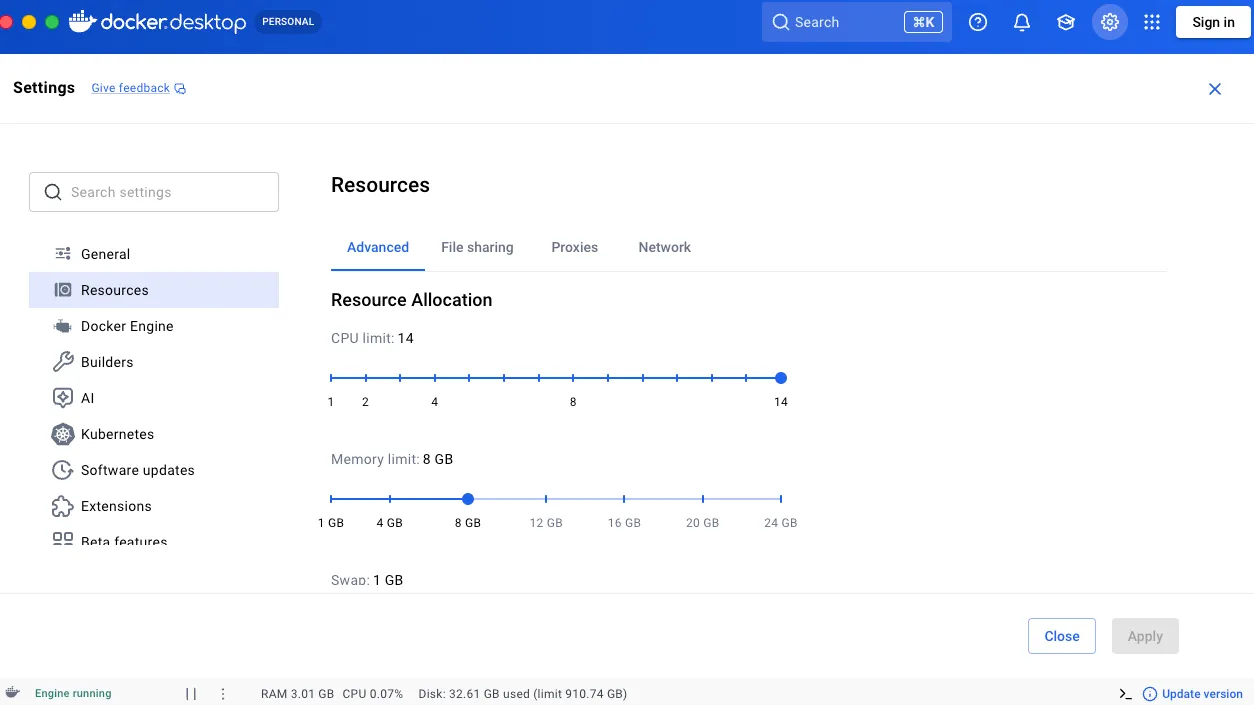
Option 2: Through Docker Desktop
Section titled “Option 2: Through Docker Desktop”-
Open Docker Desktop.
-
Click the gear icon in the top right to open Settings.
-
Go to Resources.
-
Increase the Memory limit slider, then click Apply.
This is a known limitation of Python, which Ocelescope is built on. We are actively working on making the underlying code more memory-efficient so that large logs need less headroom.